Hiển thị các bài đăng có nhãn backup. Hiển thị tất cả bài đăng

Thứ Bảy, 21 tháng 7, 2012

How to Backup Your SHSH Blobs Using Firmware Umbrella [Mac]

Source : Internet
These are instructions on how to backup your SHSH blobs using Firmware Umbrella. You can find the Windows version of this tutorial 
here


Step One
Download the latest version of Firmware Umbrella from here to your Desktop.

Step Two
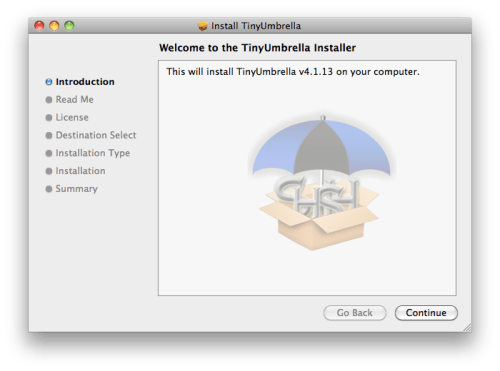
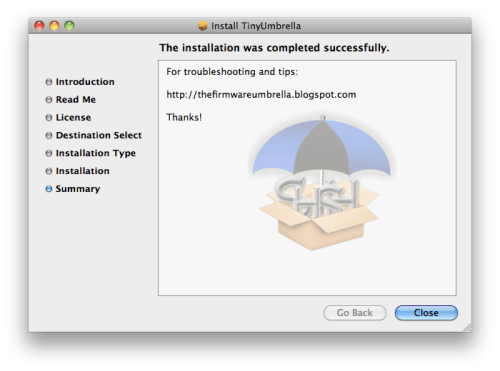
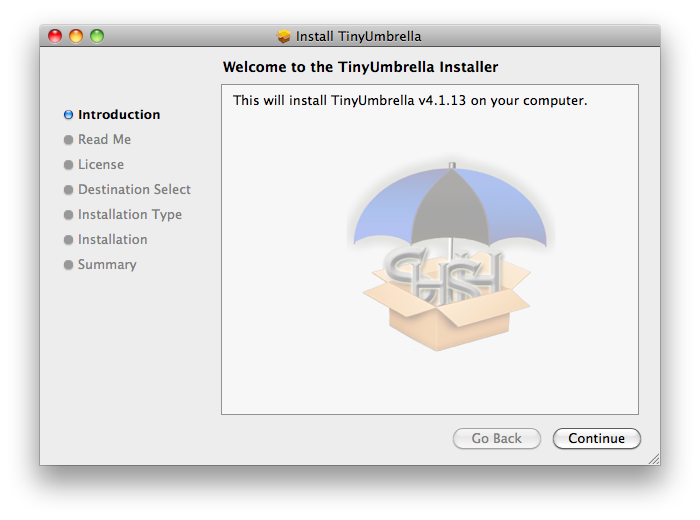
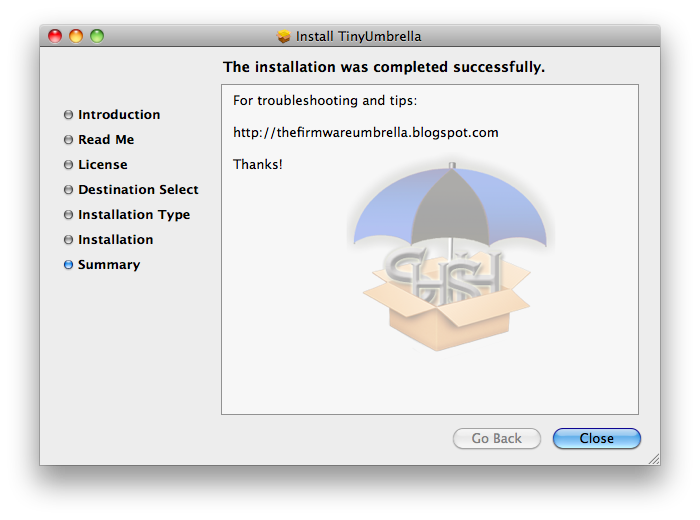
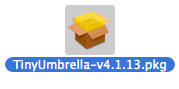
Double click the downloaded TinyUmbrella.pkg file then follow the prompts to install the application.


Step Three
Connect your iPhone to the computer and double click the TinyUmbrella icon in your Applications folder to launch the program.


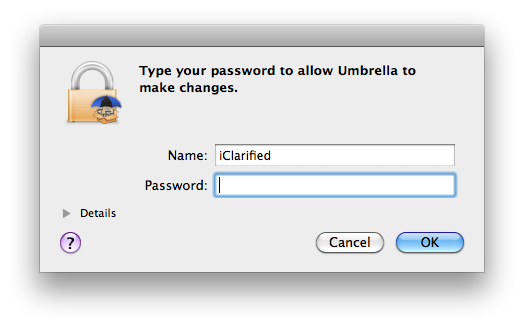
If asked, enter your administrative username and password.


Step Five
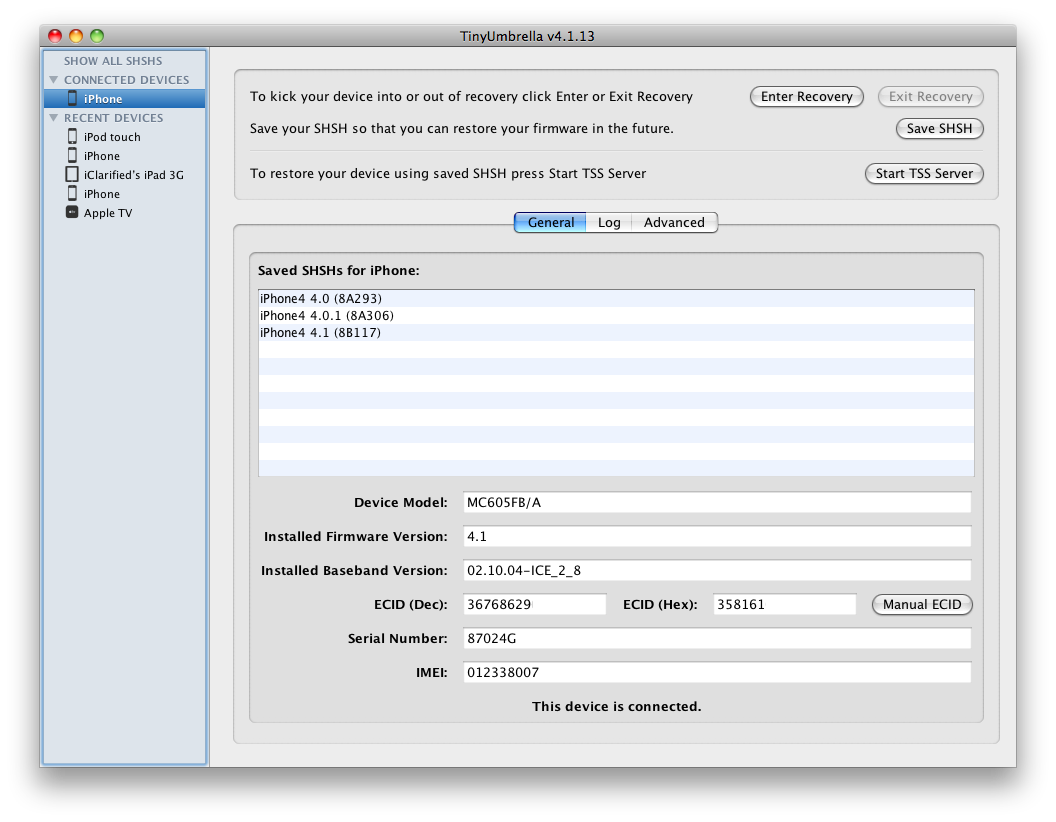
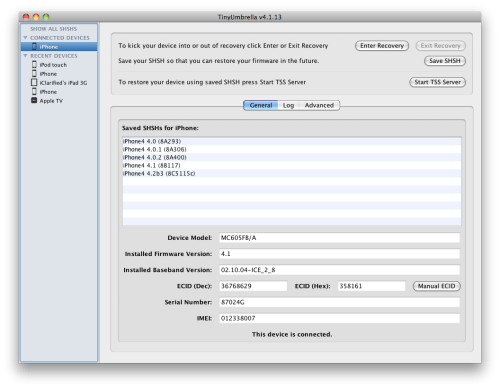
Make sure your iPhone is selected from the list on the left, then click the Save SHSH button.



Step Six
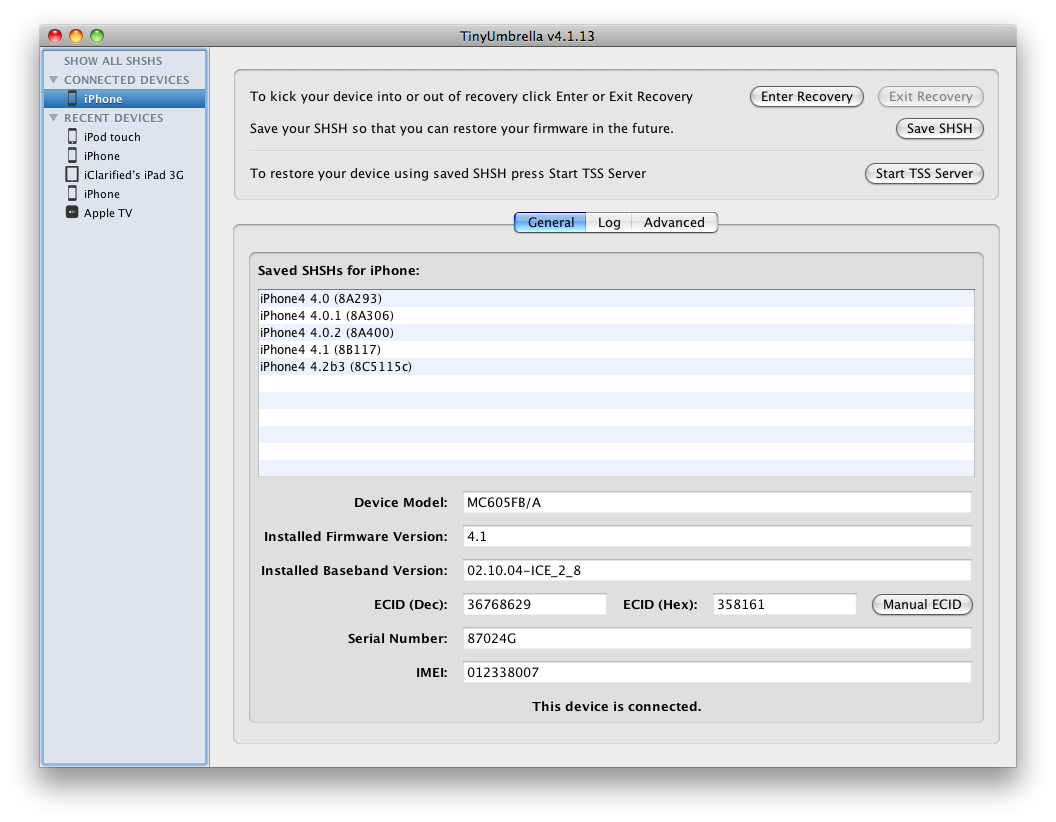
Once completed you will notice a new entry in the Saved SHSHs for iPhone list confirming the successful save of your SHSH blobs.

NOTES:
If Umbrella is not able to detect your ECID then you can find it and enter it manually. Use these tutorials to help you determine your ECID.
- iPhone: Mac, Windows
- iPad: Mac, Windows

**Thanks to semaphore for his work on this tool!
Read More


Thứ Tư, 18 tháng 7, 2012

How to Backup and Restore Your Cydia Applications Using PkgBackup

Source : Internet
These are instructions on how to backup and restore your list of Cydia applications using PkgBackup.


Step One
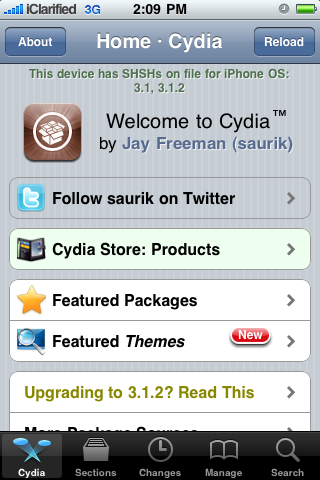
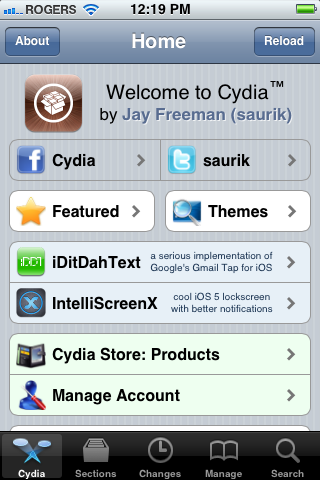
Press to launch Cydia from your iPhone Springboard


Step Two
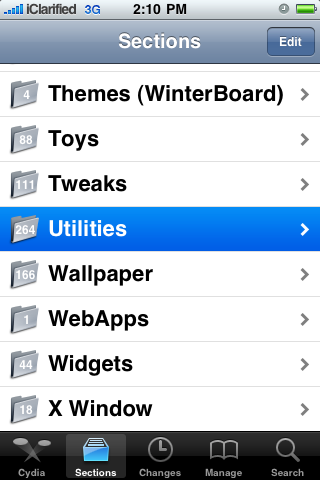
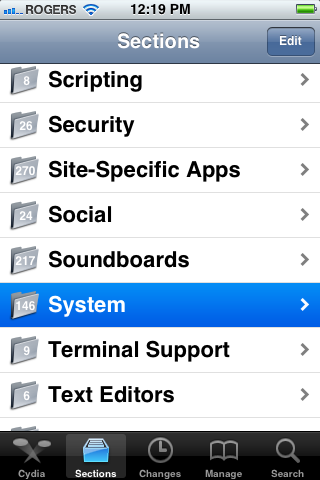
Press to select Sections from the tabs at the bottom of the screen


Step Three
Press to select Utilities from the list of Sections


Step Four
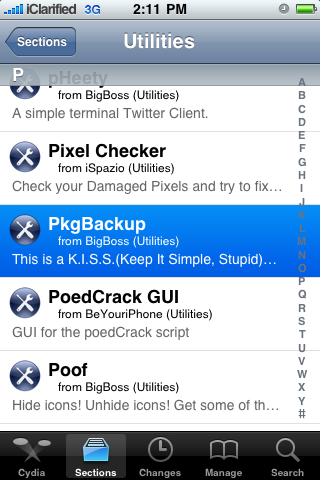
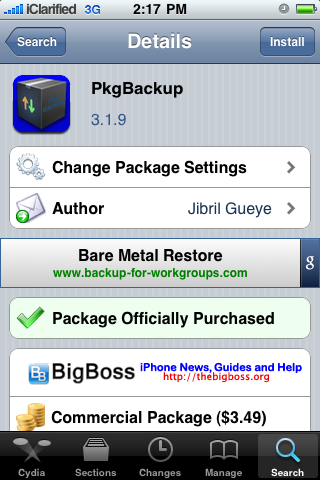
Press to select PkgBackup from the list of Packages


Step Five
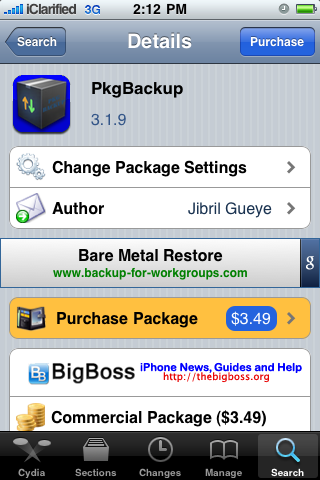
Press to Purchase PkgBackup from the Cydia Store for $3.49. Once you have entered your payment information you will be returned to the package information view where you can now press the Install button at the top right of the screen.


Step Six
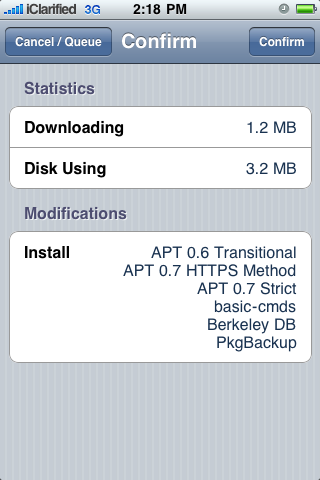
Press the Confirm button to begin your installation.


Step Seven
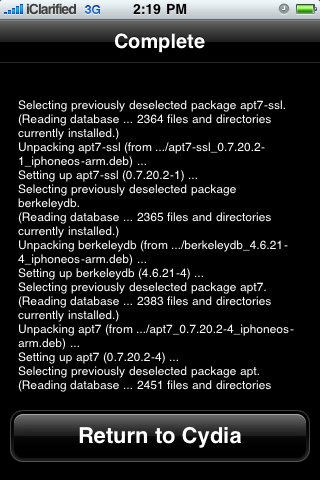
Once installation has completed successfully press the large Return to Cydia button.


Step Eight
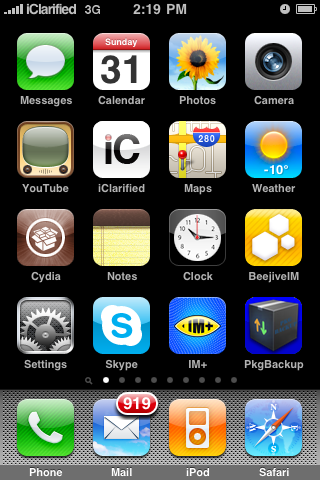
Press the Home button to return to your Springboard then launch the newly installed PkgBackup application.


Step Nine
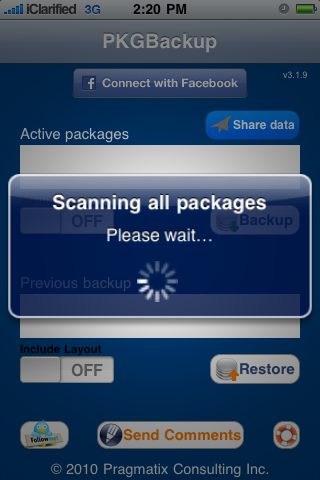
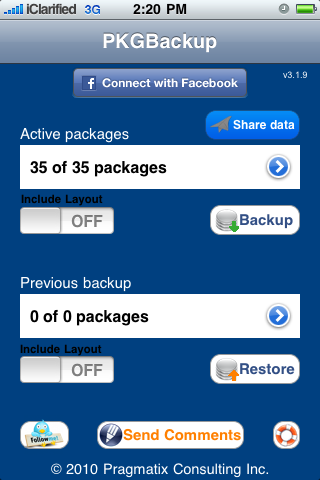
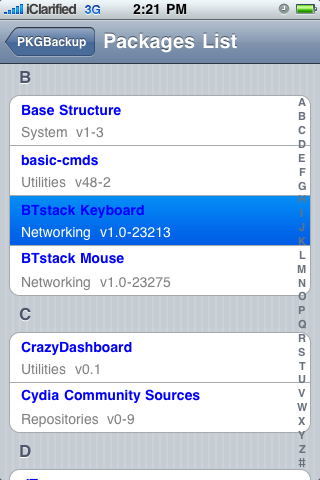
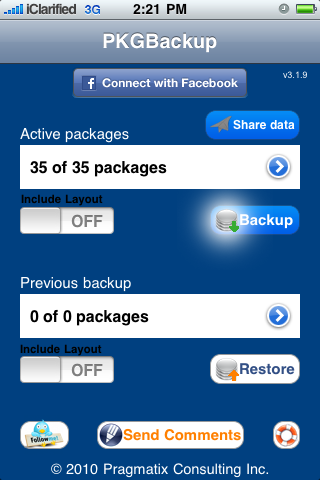
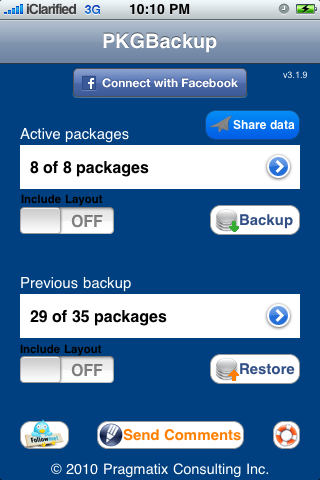
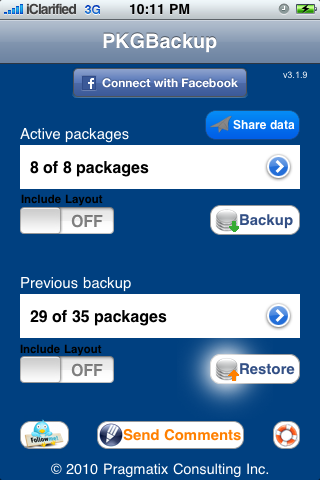
PkgBackup will begin by scanning all your installed packages. Press the blue circular arrow button to view the list of active packages.


Step Ten
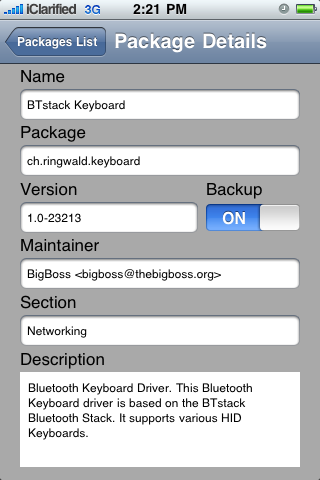
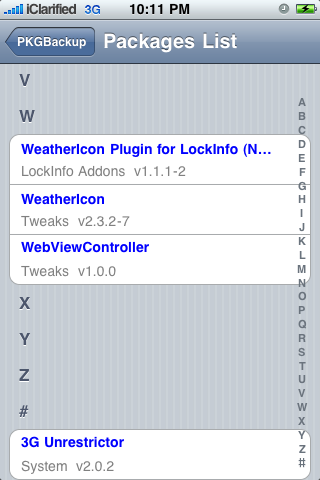
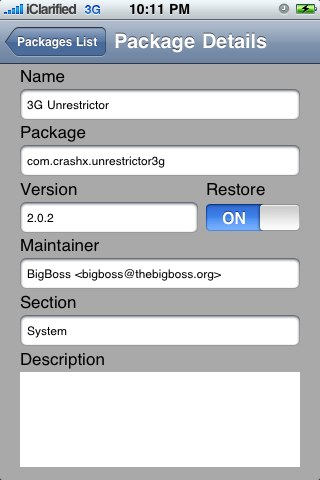
Press to select an application from the list. From the package details window you can enable or disable backup of that particular package.


Step Eleven
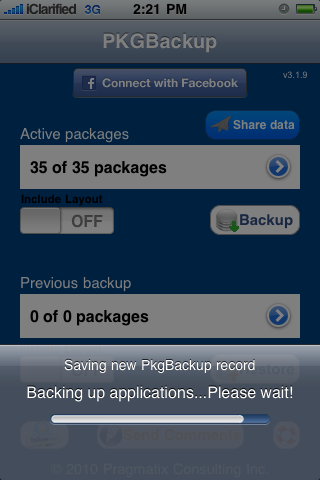
From the main screen you can turn the Include Layout switch to ON if you would like to save your Springboard layout. Next, press the Backup button to begin backing up your application list.


Step Twelve
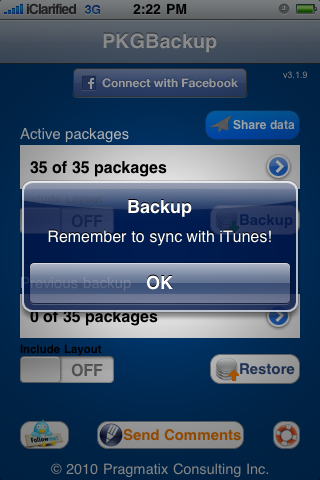
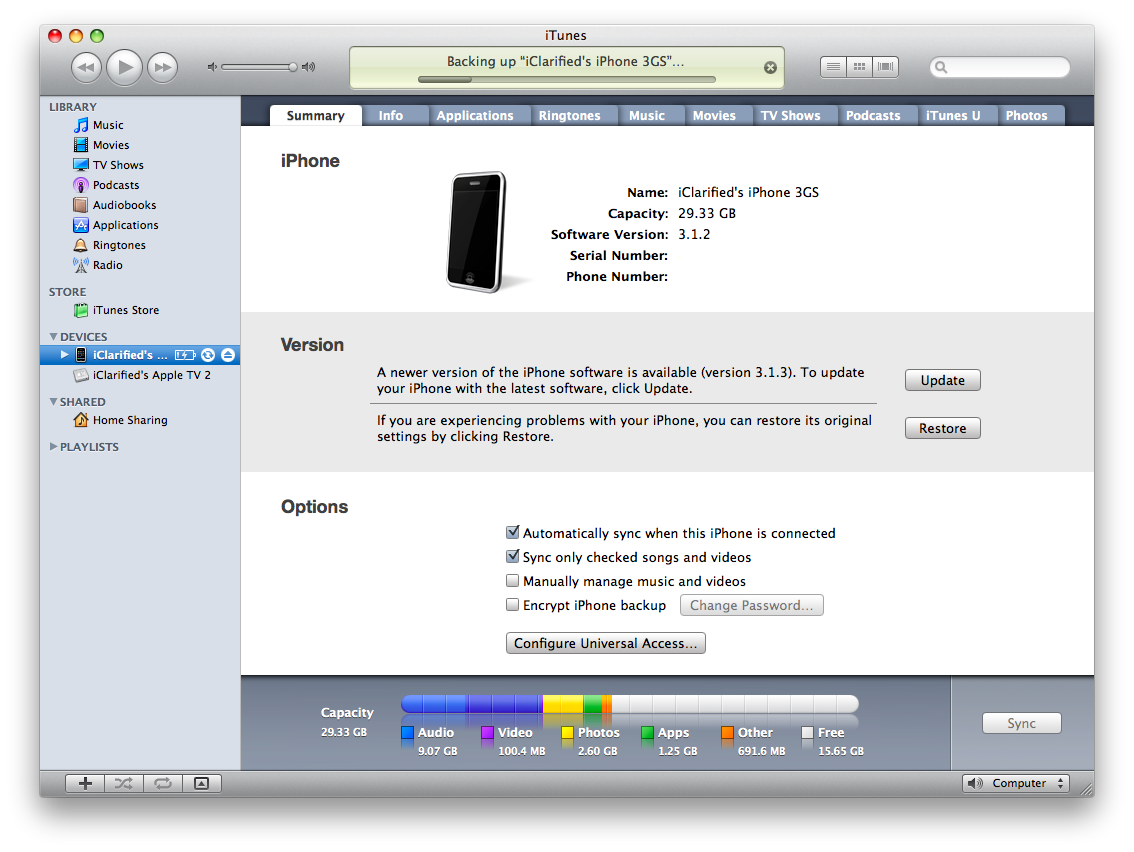
Once Pkgbackup is finished it will prompt you to sync with iTunes. Press the large OK button then connect your iPhone to iTunes and perform the sync. Make sure that iTunes successfully completes a backup during the sync process. 


Step Thirteen
If your firmware has been restored and you have lost your Cydia applications the first step is to restore the backup we just made in iTunes.

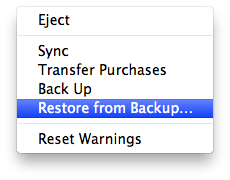
To do this, either Ctrl-Click or Right-Click on the iPhone in the list of devices in iTunes. Select Restore Backupfrom the popup menu that appears.


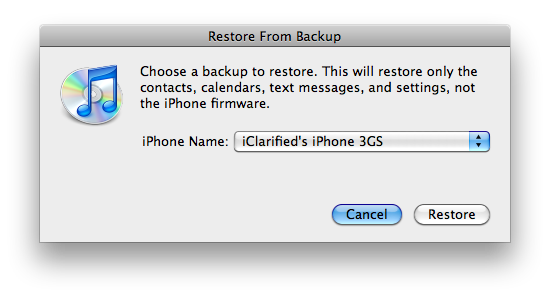
Chose the backup you would like to restore to from the list then click the Restore button.


Step Fourteen
Once the backup has been successfully restored to the iPhone you will need to follow Steps One through Eight again to install and launch PkgBackup.


Step Fifteen
Notice PkgBackup will detect how many packages you have installed and how many packages are available for installation from your previous backup.


Step Sixteen
Press the blue circular button to see the packages from your previous backup. You can select an individual package to see its details and set whether or not it will be included in a Restore.


Step Seventeen
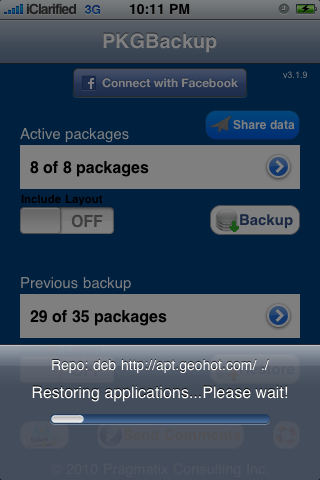
Press the Restore button to begin installing all your missing applications.


Step Eighteen
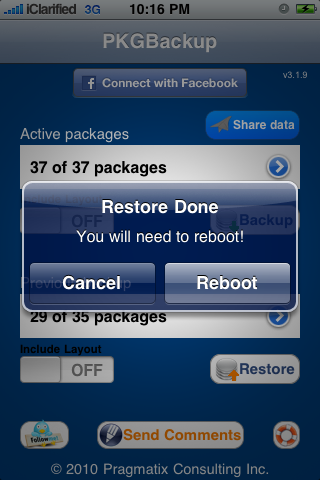
Once its done installing your applications PkgBackup will ask you to reboot. Press the Reboot button.


Step Nineteen
Once your iPhone restarts you will have all your applications back!
Read More


Chủ Nhật, 15 tháng 7, 2012

How to Backup Your iPhone Unlock Ticket

Source : internet


This entry needs translation. To help us and submit a translation please click here
These are instructions on how to backup your iPhone unlock ticket after unlocking with SAM. It's very important you do this to ensure continued unlock of your SIM in the future.

If you haven't already unlocked using SAM, you can follow this unlock tutorial.


Step One
Launch Cydia from your SpringBoard.


Step Two
Choose Sections from the tabs at the bottom of the screen.


Step Three
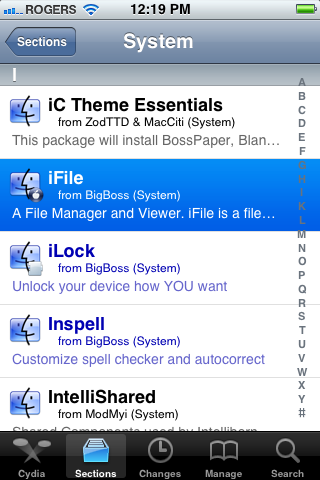
Select System from the list of sections.


Step Four
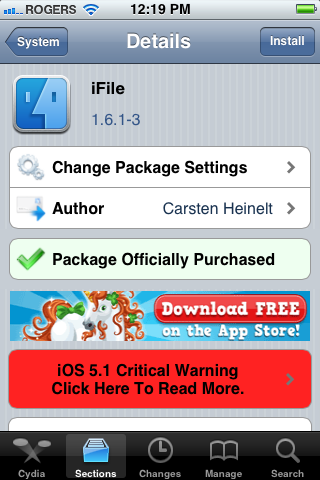
Press to select iFile from the list of packages.


Step Five
Press the Install button at the top right of the screen.


Step Six
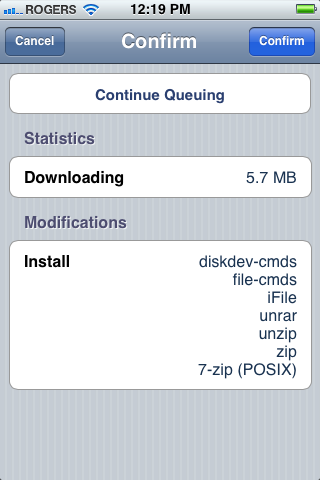
Press Confirm to begin installation.


Step Seven
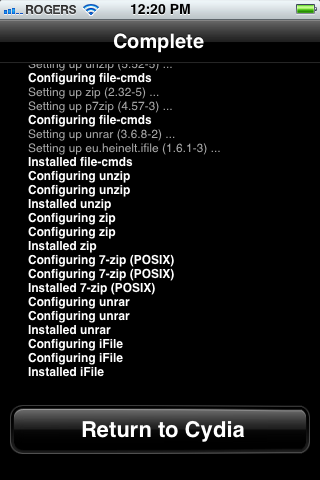
Once the installation has completed successfully, press the large Return to Cydia button.


Step Eight
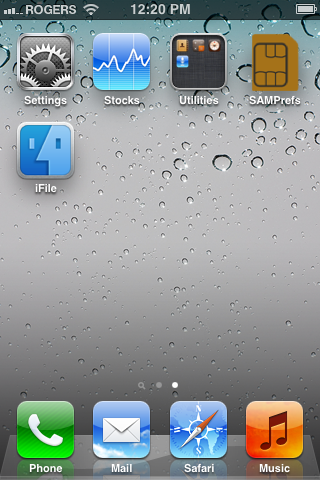
Press the Home button then launch iFile from your SpringBoard.


Step Nine
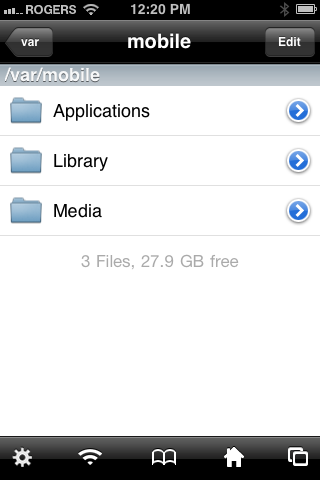
Press the Back button at the top left of your screen to navigate to /var.


Step Ten
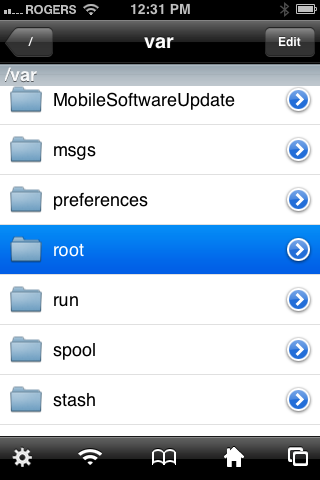
Choose root from the list of folders in /var.


Step Eleven
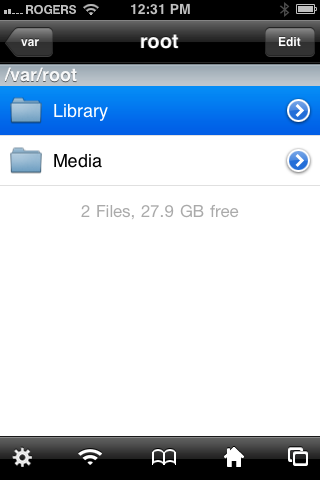
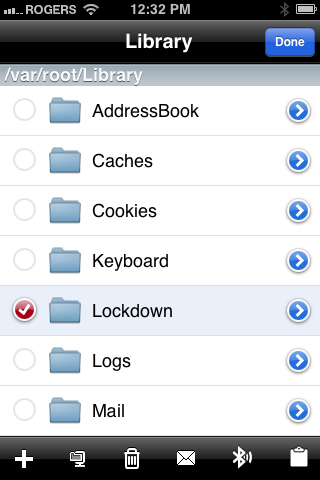
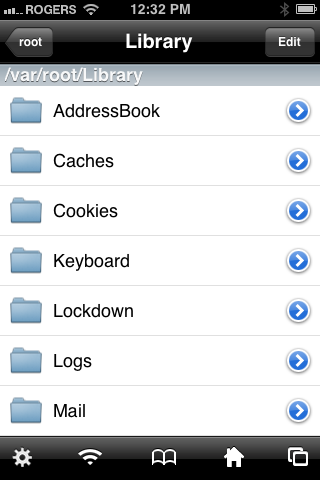
Tap to select Library from the list of folders in /var/root.


Step Twelve
Press the Edit button at the top right of the screen.


Step Thirteen
Choose Lockdown from the list of folders. Then press the zip icon in the tab bar. It's the second from the left.


Step Fourteen
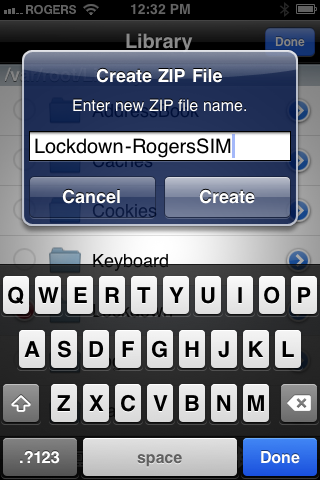
Name your archive so you know what SIM card its for. Then press the Create button.


Step Fifteen
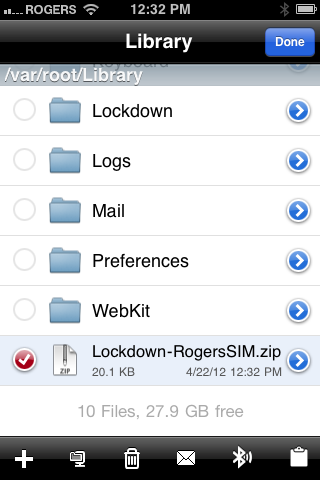
Choose the archive we created from the list of files. Then press the mail icon in the tab bar. It's the third from the right.


Step Sixteen
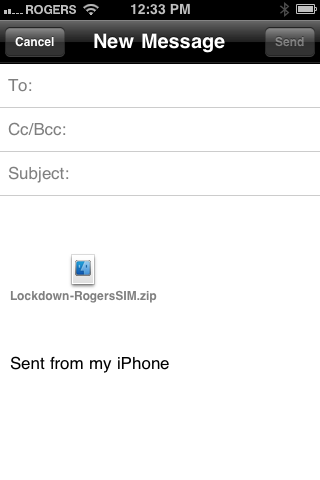
Email yourself the archive. Be sure to keep it in a safe place!


IMPORTANT:
You should perform the unlock procedure and this backup procedure for every SIM you want to use with your iPhone.

Alternatively, if you do not want to use iFile, you can simply SSH into the directory above and copy that file over to your computer. Be sure to save it in a safe place! If you are not sure on how to SSH, we have a[Windows] tutorial and a [Mac] tutorial.
Read More


Return to top of page
Powered By Blogger | Design by Genesis Awesome | Blogger Template by Lord HTML